
Guides
AI dance video guides for characters, mascots and pets
Each guide here covers one job around making a character dance on getaimotion.com: choosing the picture that animates well, matching a move to the character, filming your own moves, deciding between a Draft and a Final, and what to do with the silent MP4 afterwards, such as adding licensed music or turning it into a loop. They all use the same studio: upload one picture of a mascot, toy, drawing, 3D character or pet, pick a move or upload your own motion video, and render a Draft first.
Updated
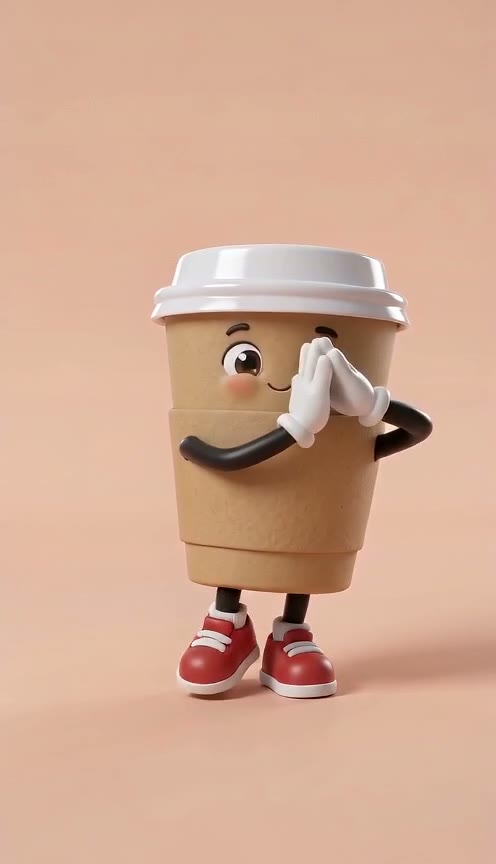
AI dance video maker: one picture of your character, dancing
To make an AI dance video on getaimotion.com, upload one picture of a character, pick a move such as Bounce, Robot or Spin, and render a Draft. The character in your picture performs the move in a short silent MP4 of 5 or 8 seconds. It works for mascots, plush toys, drawings, 3D and game characters and pets. A Draft at 480p comes back in about two minutes, so you can see whether the move suits the character before you pay for a smoother Final at 580p or 720p.
OpenMascot dance video for brands, shops and teams
To make a mascot dance video, upload one clear picture of your mascot and pick a move. A costume photo, a drawing or a 3D render all work; try Cheer, Victory jump or Two-step and render a Draft. getaimotion.com turns it into a short vertical MP4 of the mascot dancing, ready for a story, a reel or a screen in the shop. The mascot keeps its own colors and costume; only the movement is added.
Open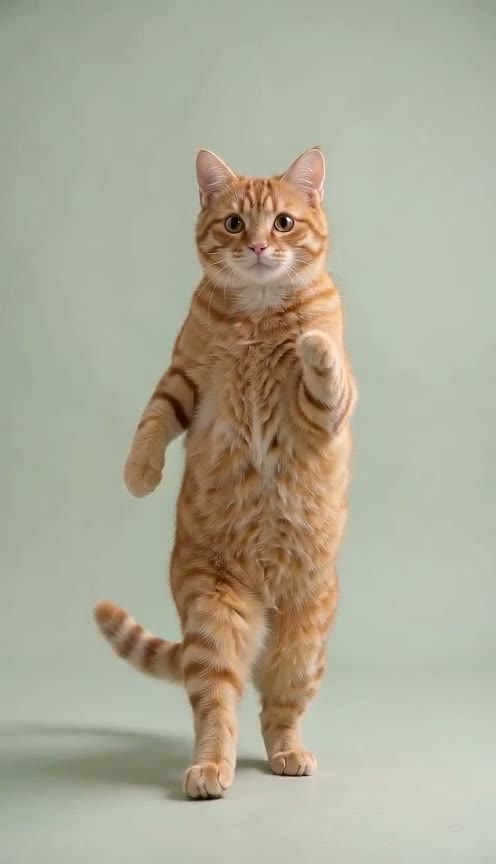
Make your cat or dog dance from one photo
To make your cat dance, or your dog, rabbit or parrot, upload one photo of the pet, pick a move like Bounce, Wave arms or Two-step and render a Draft. getaimotion.com animates the pet in your photo into a short silent dance clip. A pet photographed standing on its hind legs, or sitting up tall, works best, because the move has legs and arms to work with. Your pet stays an animal: it sways, bobs and lifts its paws rather than turning into a person.
Open